PDF guide
How to Compress a PDF Without Acrobat
Reduce PDF file size without Acrobat by choosing a privacy-appropriate method, then verify image quality, searchable text, and page count.
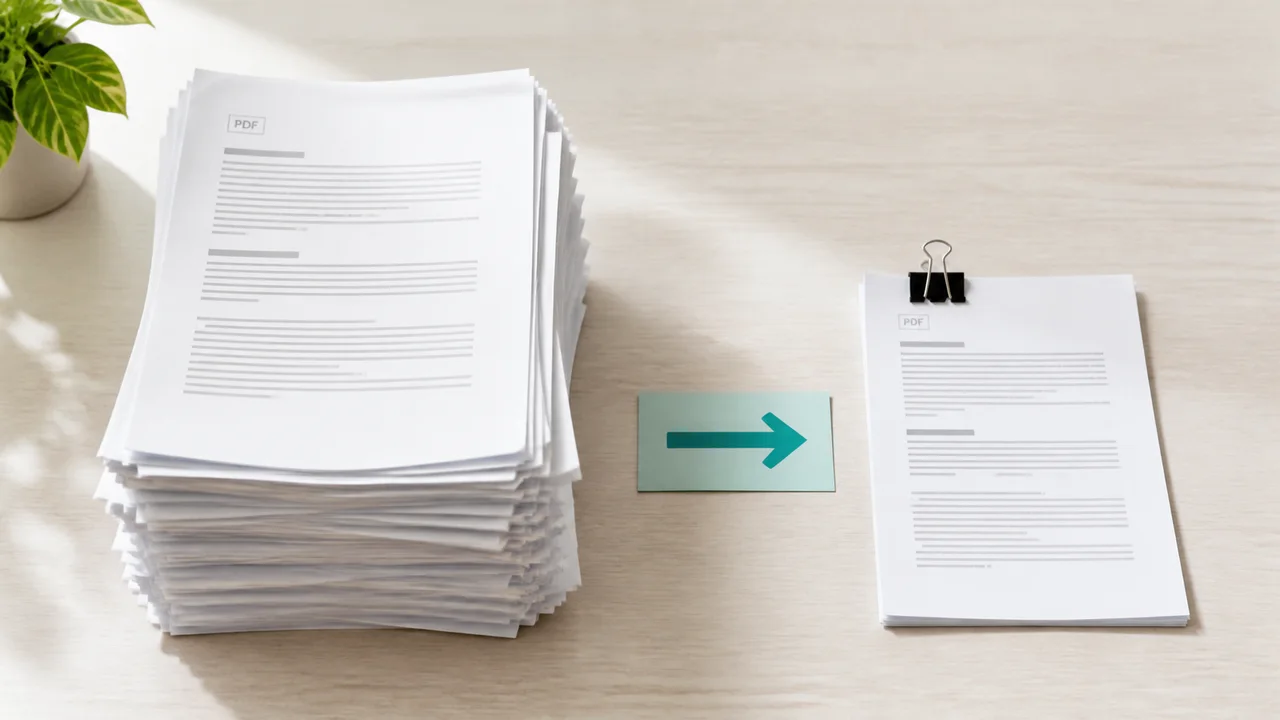
Start with the reason the PDF is large
High-resolution scans, full-page photographs, duplicated images, embedded fonts, and unnecessary pages can all increase PDF size. Knowing the likely cause helps you avoid destroying quality that was never the real problem.
Make a copy before compression and record the original file size. Set a practical target based on the upload or email limit rather than making the document as small as possible.
EditPDFly does not currently compress PDFs. Use a dedicated compressor, then return to EditPDFly only if you also need a supported page edit.
Open the PDF editorMethod 1: Use a trusted online PDF compressor
An online compressor is convenient for a non-sensitive file. Choose a service that explains upload encryption, retention, deletion, and whether processing happens locally or on a server.
Download the compressed copy under a new name. Do not upload confidential, regulated, or contract-restricted documents unless the service and your organization explicitly allow it.
- Duplicate the source PDF.
- Check the service's privacy and deletion terms.
- Choose a moderate compression level first.
- Download, reopen, and compare the result.
Method 2: Reduce file size with Preview on Mac
Preview can export a PDF with a Reduce File Size Quartz filter. Open a copy, choose Export, select PDF, choose the reduction filter, and save to a new filename so the original remains available.
The filter can make images noticeably softer. Compare small text, diagrams, signatures, and scanned pages at normal reading zoom before using the smaller copy.
Method 3: Fix the source document and export again
If you own the Word, presentation, or design source, resize oversized images there and export a fresh PDF. This gives you more control than compressing a finished PDF because you can preserve diagrams and text while reducing only heavy images.
Remove hidden slides, cropped image data, unused pages, and unnecessary embedded media before export. Use the PDF quality setting intended for screen or online distribution when print resolution is not required.
Verify the compressed PDF before replacing anything
Compare file size, page count, page order, searchable text, hyperlinks, form values, and image readability. Check pages with the smallest type and the most detailed graphics first.
Compression can invalidate digital signatures or flatten interactive content depending on the method. Keep the original and do not describe the smaller file as equivalent until it passes the checks that matter for its use.
Which PDF compression method fits your file?
Choose based on privacy, source-file access, and how much image quality the document can lose.
| Method | Best for | Upload required | Main risk |
|---|---|---|---|
| Online compressor | Fast non-sensitive files | Usually | Retention and privacy |
| Preview on Mac | Quick local reduction | No | Images may become too soft |
| Re-export source | Best quality control | No | Requires original document |
Frequently asked questions
Can I compress a PDF without Adobe Acrobat for free?
Yes. You can use a trusted online compressor, Preview on Mac, or re-export the original source with smaller images.
Why is my PDF file so large?
Common causes include high-resolution scans, photographs, embedded fonts, repeated graphics, and unnecessary pages.
Does PDF compression reduce quality?
It can. Image downsampling is often the largest source of savings and the largest visible quality loss. Always compare the output with the original.
Does EditPDFly compress PDF files?
No. EditPDFly currently edits supported page content and converts PDF to Word; it does not provide PDF compression.
Official references checked
Product features change. These first-party guides were checked while preparing this article: