PDF guide
How to Edit a PDF Without Adobe Acrobat (5 Free Ways)
No Acrobat or Adobe subscription? Compare five free ways to edit a supported PDF in a browser or Word, with honest limits for forms, signatures, and scans.
Can you edit a PDF without Adobe Acrobat?
You do not need Adobe Acrobat or an Adobe subscription for every PDF task. The right free method depends on whether you are changing a few items on a page, rewriting a document, filling a form, adding a signature, or trying to read text from a scan.
For a focused correction, annotation, image placement, or cover-and-replace change, use a browser PDF editor. For extensive rewriting, convert the PDF to Word. For an image-only scan, use an OCR product that explicitly supports the language and layout in the file.
EditPDFly currently provides the first two workflows. It does not claim OCR for scanned pages.
Use the real tool described in this guide and review the exported file.
Open the PDF Editor1. Edit the PDF in your browser without Acrobat
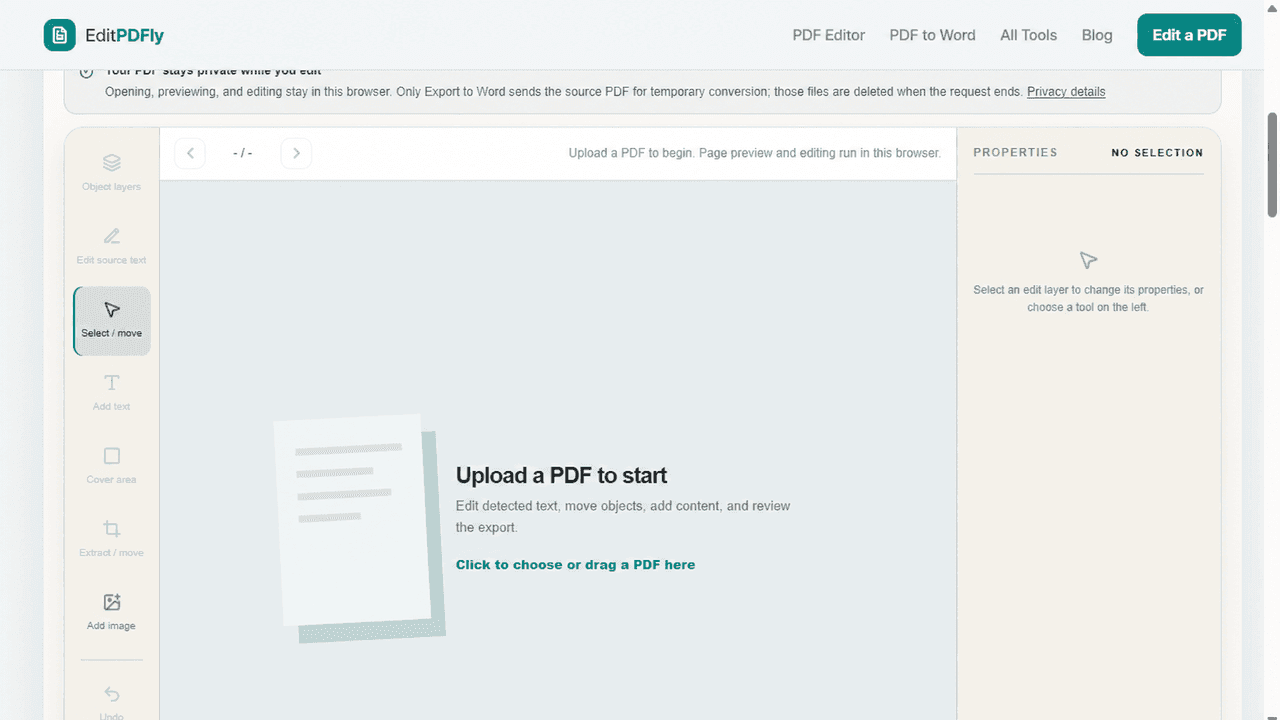
Open the Online PDF Editor, upload a file up to 20 MB, and wait for the thumbnails and page preview. Select the page, choose the relevant tool, and make the smallest change that solves the task.
Source-text editing works when the page exposes selectable text. You can also add text or images, cover an area, and move supported layers. Opening and editing remain in the browser; only Export to Word sends the source file for temporary conversion.
- Open the PDF in the browser editor.
- Check whether the target text is selectable.
- Make a focused edit with the source-text or overlay tools.
- Export and reopen the edited PDF.
2. Use Microsoft Word instead of Acrobat
A PDF page stores content around fixed geometry. Word expects paragraphs, tables, sections, and flowing page breaks. If you need to rewrite several paragraphs, reorganize headings, or reuse the content, a DOCX is usually easier to work with.
Conversion is best effort. Compare the result with the source and review the font report, especially for tables, non-Latin fonts, dense reports, and pages with many positioned graphics.
3. Import a text-heavy PDF into Google Docs
Google Drive can open an uploaded file with Google Docs and create an editable document copy. This can be useful when collaboration matters more than page-perfect layout, but it requires uploading the document to a Google account.
Treat the imported copy as reconstructed content. Multi-column pages, forms, footnotes, and positioned images may not keep their original placement. Export a PDF only after checking every page.
4. Fill or mark up a PDF with a built-in viewer
A browser or operating-system PDF viewer may let you type into existing form fields, draw a mark, or add an annotation. This is a good fit when the form already contains interactive fields and you do not need to rewrite the document itself.
Viewer features vary by device and PDF. Save a copy, reopen it, and confirm that the entered values or marks are still visible. A drawn signature image is not the same as a certificate-backed digital signature.
5. Use OCR when the PDF is a scan
If the PDF page is a photograph or scan, the visible words are pixels. A normal PDF text editor cannot turn those pixels into editable characters. OCR is a separate recognition step and can introduce spelling, number, and layout errors.
Do not cover a scan with new text and assume the underlying content became searchable. Use an OCR workflow and proofread names, dates, financial values, and other high-impact fields.
Protect the result before sharing
Reopen every exported file. Confirm page count, page order, visible edits, and searchable text. If the source contained a digital signature, expect the edited copy not to preserve that signature.
Use the original PDF as a reference and keep the edited file under a new name until the result has been reviewed.
Which free PDF editing method should you pick?
Choose the method by the change you need, not by the PDF label alone.
| Method | Best for | Install needed | Main limit |
|---|---|---|---|
| EditPDFly browser editor | Focused text and page overlays | No | Supported text and fixed page layout only |
| Microsoft Word | Long rewrites and reflow | Usually | Layout can change |
| Google Docs | Collaborative text reconstruction | No | Upload and layout changes |
| Built-in PDF viewer | Existing forms and simple marks | No | Features vary by file and device |
| OCR product | Image-only scans | Varies | Recognition errors need proofreading |
Frequently asked questions
Can I edit a PDF without paying for Adobe Acrobat?
Yes. A browser editor can handle focused changes, Word can rebuild text-heavy PDFs, and built-in viewers can handle some forms or annotations. The best option depends on the file and the change.
What is the easiest way to edit a PDF file for free?
For one or two page-level changes, start with a browser editor. For longer rewriting, convert the PDF to Word. If the PDF is a scan, use OCR first.
How do I edit an already existing PDF file?
Keep the original, open a copy in the method that matches the task, make the smallest necessary change, export under a new name, and reopen the result before sharing it.
How do I turn a normal PDF into an editable PDF?
If it already has selectable text, use a compatible PDF editor. If you need paragraphs to reflow, convert it to Word. If every page is an image, OCR is required before text becomes editable.
Official references checked
Product features change. These first-party guides were checked while preparing this article: