PDF guides for common tasks
Choose a task and open the guide with the workflow, limits, and checks you need.
Browse all guides
7 articles
How to Convert PDF to Word Without Acrobat
Convert a PDF to an editable Word document without Acrobat, then inspect the DOCX for font, table, and page-layout changes.
How to Edit Text in a PDF
Learn how to edit text in PDF files online, choose source-text or overlay edits, handle scans and fonts, then export and verify the result.
How to Edit a PDF Without Adobe Acrobat (5 Free Ways)
No Acrobat or Adobe subscription? Compare five free ways to edit a supported PDF in a browser or Word, with honest limits for forms, signatures, and scans.
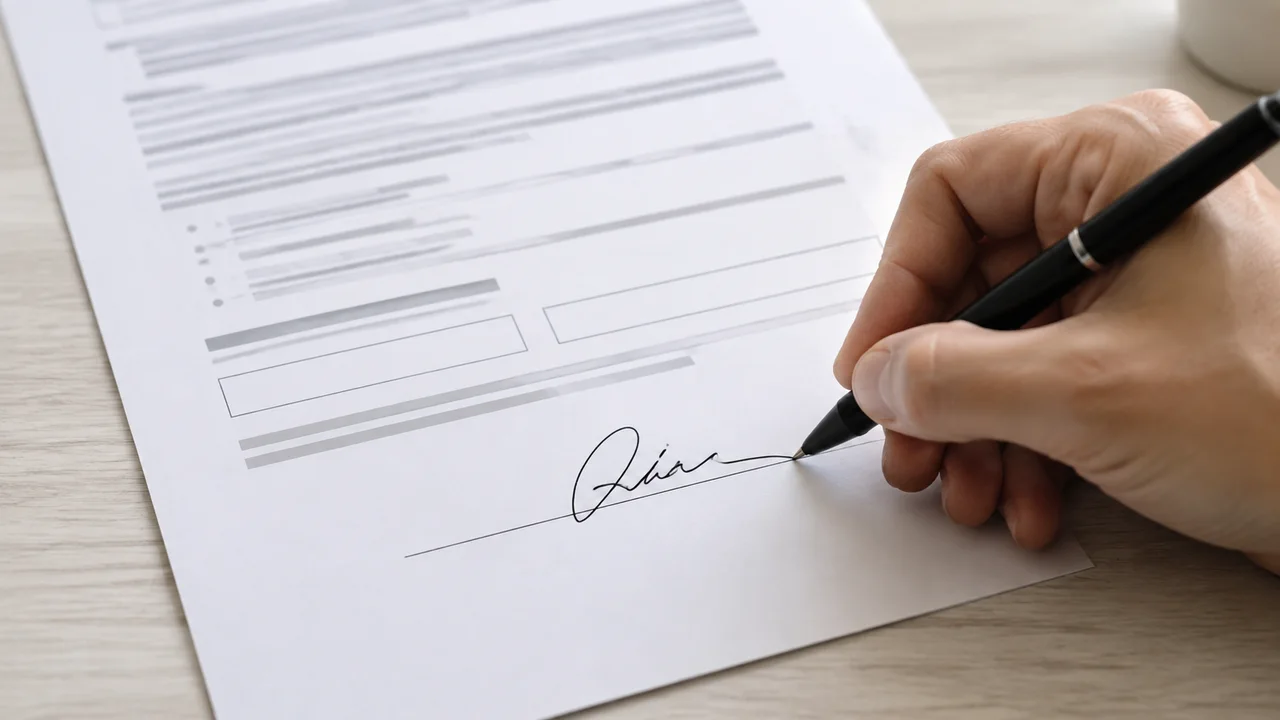
How to Sign a PDF Without Acrobat
Add a visible signature to a PDF without Acrobat, choose a safe method for your device, and understand when a digital certificate is required.
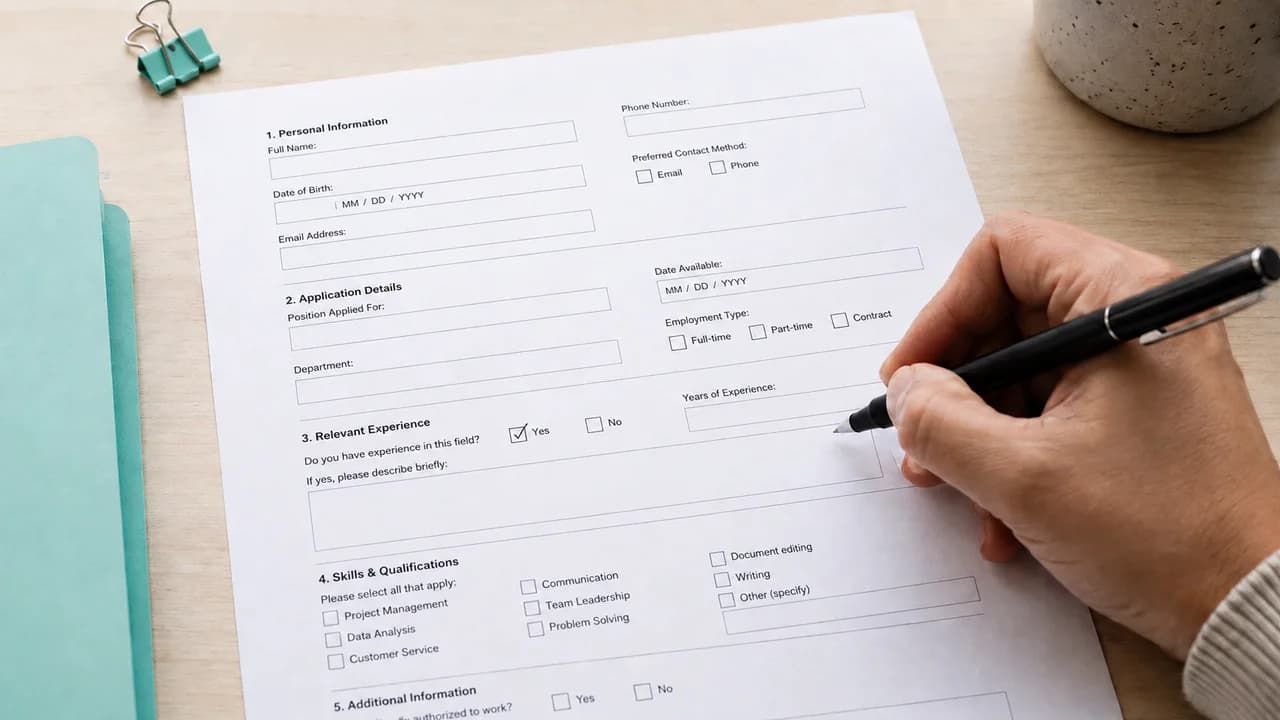
How to Fill Out a PDF Form Without Acrobat
Fill a PDF form without Acrobat using existing form fields, device tools, or careful text overlays, then verify the saved result before sending it.
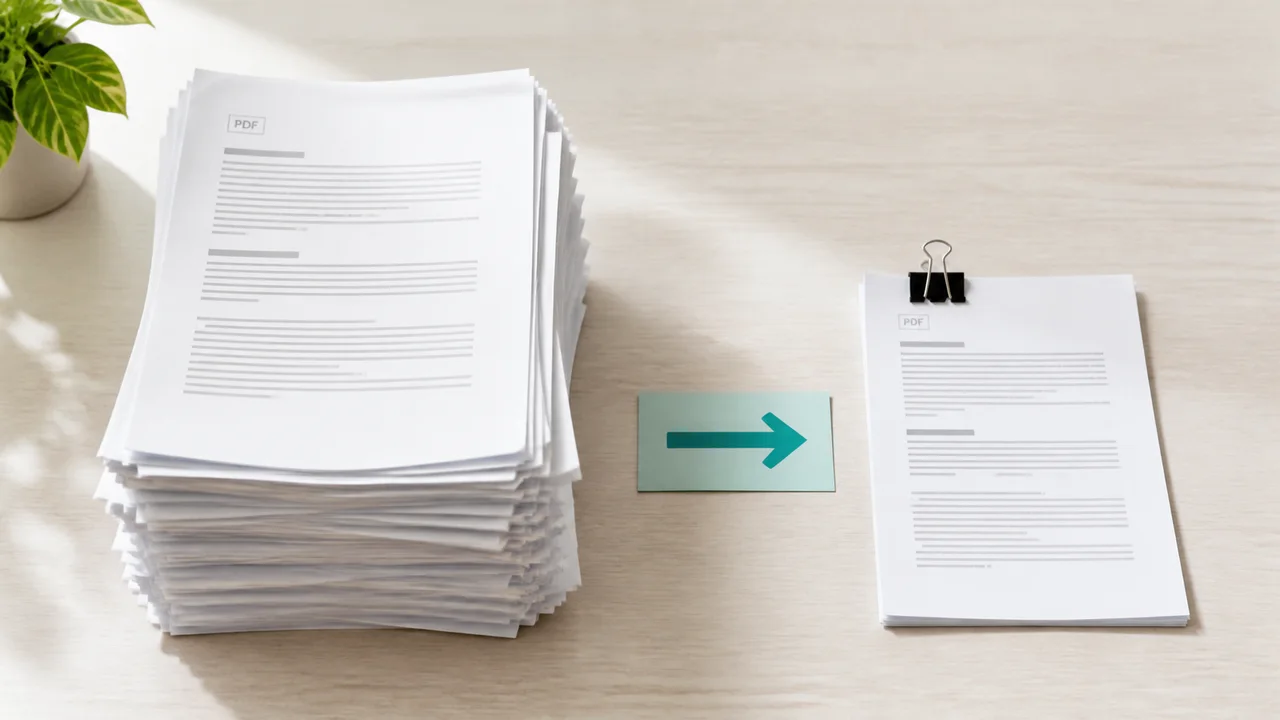
How to Compress a PDF Without Acrobat
Reduce PDF file size without Acrobat by choosing a privacy-appropriate method, then verify image quality, searchable text, and page count.
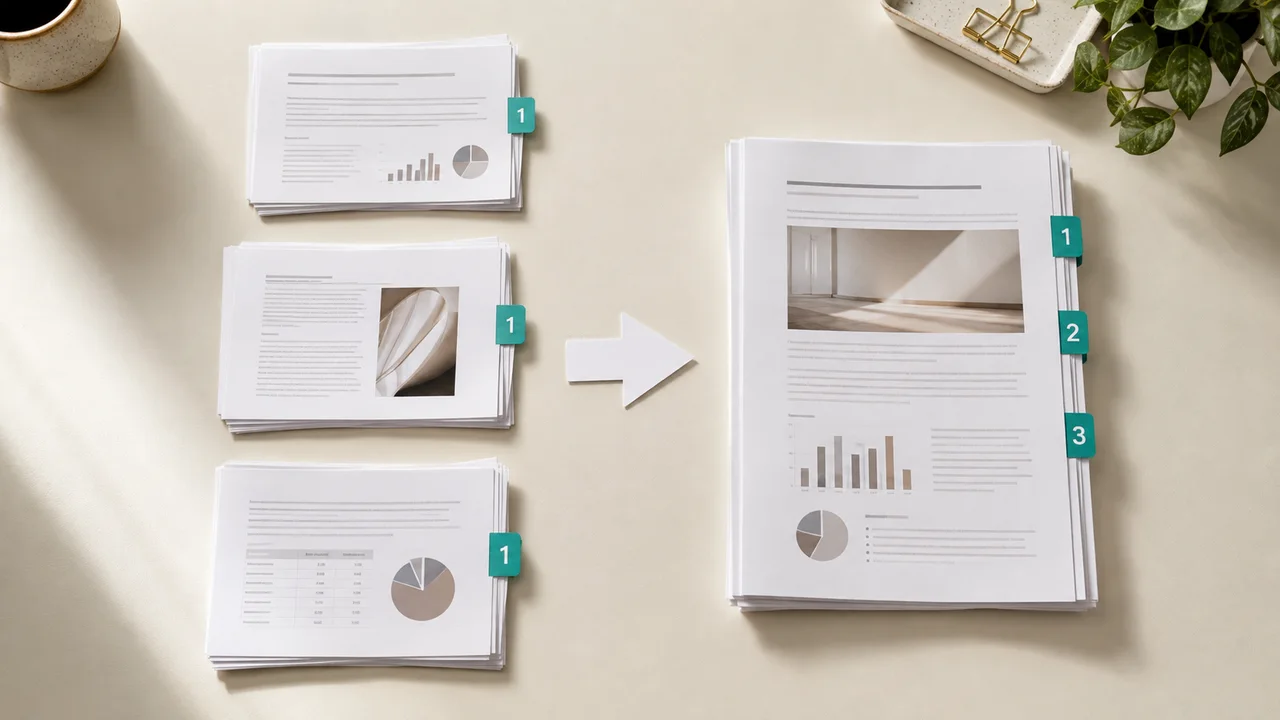
How to Merge PDF Files Without Acrobat
Combine PDF files without Acrobat, put pages in the correct order, protect sensitive documents, and verify the merged file before sharing it.
How to use these PDF editing guides
Begin with the task, not the file extension. A one-line correction, a new label, and a full document rewrite are different jobs even when they all start with a PDF. Each guide explains which workflow fits the change, what the tool can preserve, and what you should inspect before using the result.
The guides are written around the tools that are available on EditPDFly today. They do not assume that every PDF contains editable text, and they do not describe OCR or perfect same-font editing as features when those capabilities are not present.
Check what kind of PDF you have
Try selecting a word in the source document. If the text can be selected, the PDF probably contains a searchable text layer that an editor or converter can analyze. If the entire page selects as one image, the file is likely a scan. Scanned pages need OCR before their words become editable characters.
Also note whether the file uses forms, signatures, uncommon fonts, multi-column layouts, or complex tables. Those details influence whether direct editing or Word conversion is the safer first step.
Choose direct PDF editing or Word conversion
Use the online PDF editor when the final deliverable should remain a PDF and the change is focused. You can edit supported text, add text or images, cover an area, and move supported layers without rebuilding the entire document.
Use the PDF to Word converter when you need to revise paragraphs, reorganize content, or collaborate in a DOCX. Conversion creates a more flexible document, but page breaks, tables, and fonts can move because Word uses different layout rules.
Review every exported document
Reopen the downloaded file before sharing it. For a PDF, inspect the visible change, surrounding text, page count, and searchable layer. For a DOCX, compare headings, tables, images, pagination, headers, footers, and font substitutions with the source.
Keep the original document until the result has passed that review. A successful download proves that a file was created, not that every page is ready for its intended use.
Continue with the guide that matches your task
Start with how to edit text in a PDF for a focused correction. Read how to convert PDF to Word without Acrobat when you need an editable document. The Adobe Acrobat alternatives guide compares five practical methods.
For document handoff tasks, continue with the guides to sign a PDF, fill out a PDF form, compress a PDF, or merge PDF files without Acrobat.