PDF guide
How to Merge PDF Files Without Acrobat
Combine PDF files without Acrobat, put pages in the correct order, protect sensitive documents, and verify the merged file before sharing it.
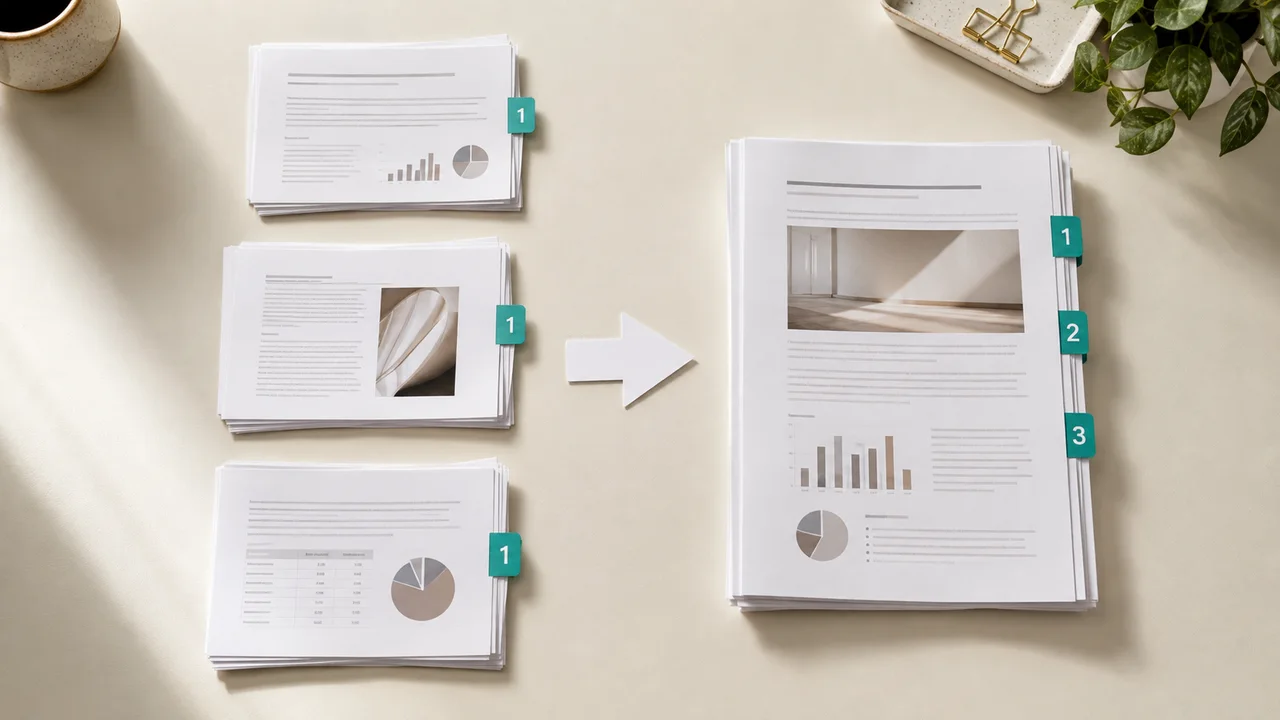
Prepare the PDFs before you combine them
Rename the source files in their intended order and open each one. Confirm that none is password-protected, corrupted, unexpectedly rotated, or already contains pages from another file.
Work on copies. Some desktop PDF tools save page changes automatically, so keeping untouched originals is the safest way to recover from a wrong order or accidental deletion.
EditPDFly combines up to 20 PDFs locally in the browser. Reorder, rotate, or remove individual pages before downloading one merged file.
Combine PDF filesMethod 1: Merge PDFs in Preview on Mac
Open the PDFs in Preview and show page thumbnails for each document. Drag selected thumbnails from one sidebar into the other, place them at the correct position, and reorder pages before saving the combined copy.
Preview may save changes automatically. Duplicate the PDFs first if you need to preserve the originals separately.
- Duplicate and open the source PDFs.
- Choose View and show Thumbnails.
- Drag pages into the destination sidebar.
- Reorder pages, save a copy, and reopen it.
Method 2: Use a browser-based PDF merger
A browser-based merger is convenient when you do not have a desktop PDF application. In EditPDFly, add the files, inspect every page thumbnail, reorder or rotate pages, remove unwanted pages, and download the merged copy.
EditPDFly performs this workflow locally in your browser. For other services, check whether processing happens locally or uploads the files, and review their retention terms before using sensitive documents.
Method 3: Export one PDF from the source files
If the original pages came from Word, presentation, or image files, combining those sources and exporting once can produce a cleaner result than merging finished PDFs. It also lets you standardize page size, margins, headers, and bookmarks before export.
This method is less suitable when you have only final PDFs or when changing the source would disturb approved page appearance.
Check the merged PDF page by page
Confirm the total page count, first and last page, transitions between source files, page orientation, bookmarks, links, form values, and searchable text. Look for duplicate or missing pages at every file boundary.
Merging can affect signatures and interactive features. Keep signed originals and use a workflow approved by the recipient when certificate validity or formal records matter.
Choose a PDF merge method
The safest method depends on your device, document sensitivity, and whether the source files are still available.
| Method | Best for | Upload required | Main caution |
|---|---|---|---|
| Preview on Mac | Local page-level control | No | Can save changes automatically |
| Browser merger | Fast cross-device use | Maybe | Privacy and retention |
| Re-export sources | Consistent layout | No | Needs editable originals |
Frequently asked questions
Can I merge PDF files without Adobe Acrobat for free?
Yes. Preview on Mac can combine pages, and browser-based mergers can work across devices. Choose the method according to privacy and document sensitivity.
How do I merge PDFs without losing quality?
Prefer page-level merging that copies existing PDF pages instead of printing or rasterizing them. Compare detailed images and searchable text afterward.
Can I change the page order while merging PDFs?
Most merge workflows show page thumbnails that can be reordered before saving. Verify every boundary between source files.
Does EditPDFly merge multiple PDFs?
Yes. EditPDFly can combine up to 20 PDFs with a 100 MB total limit. Page organization and merging happen locally in the browser.
Official references checked
Product features change. These first-party guides were checked while preparing this article: