PDF guide
How to Edit Text in a PDF
Learn how to edit text in PDF files online, choose source-text or overlay edits, handle scans and fonts, then export and verify the result.
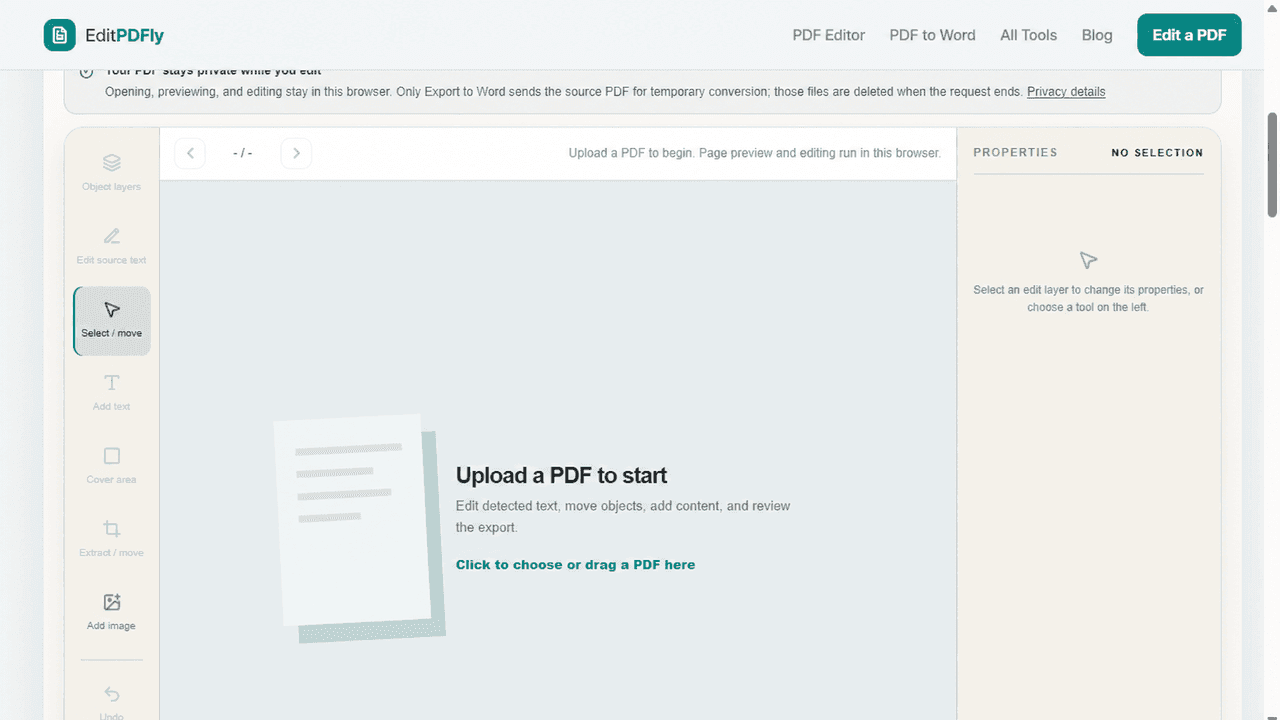
How to edit text in PDF: start with the file itself
If you need to learn how to edit text in PDF files, start by identifying what the page actually contains. A PDF may store selectable characters, a scanned image, or vector outlines that only look like text. The right editing method depends on that structure, so checking the file first prevents wasted work and helps you choose between source-text editing, a visible overlay, OCR, or conversion to Word.
Make a copy of the original before you begin. Work on the copy, change only the content that needs correction, and export under a new filename. This keeps the source available for comparison and matters when the document contains signatures, forms, precise page geometry, or fonts that may not be available on your device.
Open the PDF and try to select a word. If the cursor can highlight individual characters, the page probably has a text layer. If the whole page behaves like one image, it may be a scan and will need OCR before the words can be edited as text.
A PDF can also contain text converted to vector outlines. It looks sharp but no longer behaves like characters. This is another case where a normal text editor cannot simply replace a sentence.
EditPDFly reports when a page has no editable text layer. That message is a limit, not a processing failure.
Source-text editing works only on supported selectable text. Image-only scans need OCR first.
Edit a PDFHow to edit text in PDF step by step
Upload one PDF up to 20 MB in the Online PDF Editor. Use the thumbnail or page controls to move to the page you want to change, then choose Edit source text from the tool rail.
Detected text becomes selectable in the editing overlay. Choose the line, edit the content, and click outside the text when you are finished. Keep the replacement close to the original length when the surrounding layout is tight.
- Upload the PDF and wait for the page preview.
- Navigate to the target page and choose Edit source text.
- Select a detected text line and type the replacement.
- Review the line against nearby content before exporting.
Plan the replacement before changing the page
Before replacing a line, record the original wording and note its position, font size, alignment, color, and approximate width. A screenshot can help with visual comparison, but keep it private when the document contains personal or confidential information. Prepare the replacement text outside the editor first so you can check spelling, punctuation, numbers, and capitalization without repeatedly changing the PDF.
Match the length and structure of the original line whenever possible. A longer replacement can collide with nearby text, while a shorter one may leave an obvious gap. If a sentence must grow, consider splitting the change into another line only when the surrounding layout has space. Do not shrink the font until the words are technically visible but difficult to read. The edited result should remain legible at normal viewing size.
For repeated corrections, test one representative page before editing every occurrence. Export that test, reopen it in another viewer, and confirm that the text remains searchable and positioned correctly. If the test exposes a missing font, broken character, or shifted line, stop and choose a different workflow before repeating the problem across the document. This small trial is faster than repairing many pages after a full export.
Use an overlay when source text is not the right target
Sometimes you do not need to rewrite the source text. You may need to add a note, place an image, or cover an outdated value and put a new value above it. The Add text, Add image, and Cover area tools handle those focused changes.
Overlay edits preserve the visible result through a hybrid export. They are different from rebuilding the original text object, so treat them as page-level edits and inspect the exported PDF carefully.
Use a cover only when you are authorized to change the visible page and the old content does not need to remain discoverable. A cover can hide pixels without removing the underlying source object, so it is not a secure redaction method. For information that must be permanently removed, use a dedicated redaction workflow and verify that searching, copying, and inspecting the exported file cannot reveal the original content.
Why the font may not match exactly
A PDF can embed a font subset that your browser cannot use as a normal installed font. The editor reads the available family information, but the device can still fall back to another font. A fallback can change character width and line wrapping.
Do not assume every PDF can preserve the exact same font. Compare the edited line at normal zoom and at a closer zoom before downloading the final PDF.
Export, reopen, and inspect
Select Download PDF after making a change. Reopen the file in a separate viewer and verify the edited page, page count, searchable text, and any moved elements. PDF exports do not add a visible watermark or test-copy label; existing digital signatures are not preserved.
If the change needs extensive paragraph reflow, repeated style changes, or large table edits, converting to Word may be more efficient than editing the PDF page directly.
Choose the smallest edit that preserves the document
A short correction is usually safer than rebuilding a full page. For a typo, date, label, or single line, source-text editing can preserve more of the original document than conversion. If the replacement would force several lines to reflow, change a table structure, or move nearby elements, use a word-processing workflow instead and compare the rebuilt layout page by page.
Treat the exported PDF as a new document, not as proof that every original feature survived. Check links, form controls, annotations, accessibility tags, search behavior, and signature status when they matter to the recipient. For regulated, contractual, or archival files, confirm the accepted editing method before sharing the result. A visual match alone may not preserve the document properties required by another system.
Frequently asked questions
Can I edit existing text in a PDF for free?
Yes, when the PDF contains a supported selectable text layer. EditPDFly can change a detected line in the browser, but it does not automatically reflow surrounding paragraphs.
How do I edit text in PDF without changing the layout?
Start with a supported selectable text line, keep the replacement close to the original length, and inspect nearby spacing before export. Large rewrites are better handled by converting the PDF to Word and rebuilding the affected layout.
Why can I select a page but not its words?
The page may be a scan, a photograph, or text converted to vector outlines. Those files need OCR or reconstruction before the words behave like editable characters.
Is adding text the same as editing the original text?
No. Adding text places a new overlay above the page. Editing source text changes a detected text line. Both require a visual check after export.
Can I edit text in a signed PDF?
Editing produces a new document state and existing digital signatures are not preserved. Keep the signed original and confirm the acceptance requirements before sharing an edited copy.