PDF guide
How to Fill Out a PDF Form Without Acrobat
Fill a PDF form without Acrobat using existing form fields, device tools, or careful text overlays, then verify the saved result before sending it.
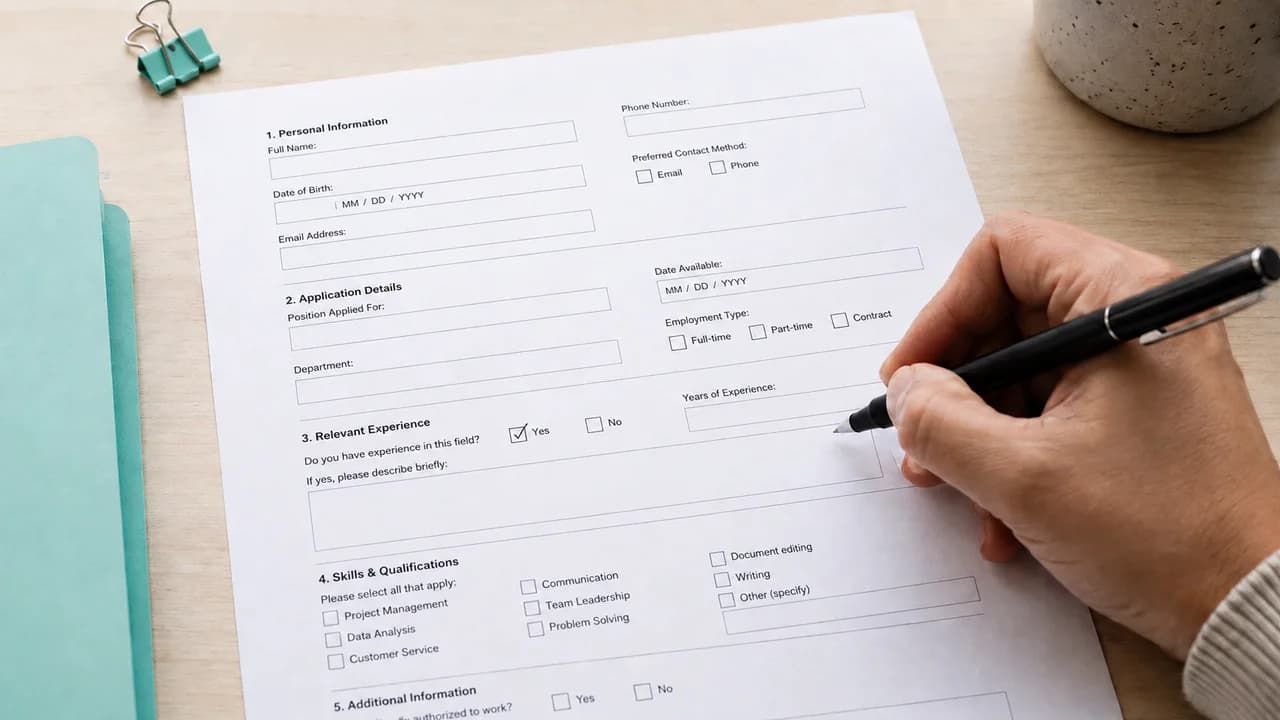
Check whether the PDF form is interactive or flat
Click a blank field. If a cursor appears, a checkbox responds, or the field receives focus, the PDF probably contains interactive form controls. If nothing happens and the blank lines are part of the page image, it is a flat form.
This distinction determines the method. Interactive fields preserve structured values and may validate dates or required answers. A text overlay only places visible content above a flat page.
EditPDFly adds text overlays to the page; it does not fill interactive PDF form fields or provide form validation.
Add text to a flat PDFMethod 1: Fill the existing fields in a browser or viewer
Open a copy in a trusted browser or built-in PDF viewer and select each form field. Move through the form in order, use the provided checkboxes, and avoid adding content outside the intended controls.
Use Save As or download a new copy rather than replacing the blank original. Reopen the saved file to make sure the field values were embedded and remain visible outside the original viewer.
- Open a copy of the PDF.
- Click a field and enter the requested value.
- Complete checkboxes and date fields in order.
- Save under a new name and reopen the result.
Method 2: Use Preview on iPhone or Mac
Apple Preview provides form-filling and annotation controls on supported devices. Open the PDF, choose the form-filling control, tap or click a field, and enter the information. A signature or separate text box can be added when the form requires one.
AutoFill can expose personal information, so review every inserted value before saving. Do not use a suggested address, phone number, or email without checking it against the form request.
Method 3: Add text over a flat form
When a form is flat but has clear blank spaces, a page editor can place text overlays above those areas. In EditPDFly, choose Add text, type one response, position it carefully, and repeat only where the result remains readable.
This is not interactive form filling. It does not add field names, validation, calculations, or accessible form semantics. Reopen the exported PDF and confirm that the receiving party accepts the result.
Review sensitive information before sending
Check names, identification numbers, dates, account details, selected boxes, and required signatures one field at a time. Use the least sensitive information the form actually requests and send it through the recipient's approved channel.
If the form contains scripts, calculations, locked fields, or submission buttons, use the software recommended by the form owner. A visual overlay cannot reproduce those behaviors.
Choose the right way to complete the form
Use the file's existing structure when it is available. Use overlays only as a visible fallback for a flat page.
| Method | Works with | Structured fields | Main check |
|---|---|---|---|
| Browser or PDF viewer | Interactive forms | Yes, when supported | Reopen saved values |
| Apple Preview | Forms and annotations | Depends on the form | Review AutoFill data |
| EditPDFly text overlay | Flat blank areas | No | Placement and fixed page layout |
| Print and write | Paper-accepted forms | No | Scan quality and recipient rules |
Frequently asked questions
Can I fill out a PDF form without Adobe Acrobat?
Yes. Interactive forms often work in a browser or built-in viewer. Flat forms may require text overlays or a printed copy.
Why can I not type into a PDF form?
The form may be flat, locked, unsupported by the viewer, or built with scripts that require specific software. Ask the form owner when the intended workflow is unclear.
How do I save a filled PDF so the answers stay visible?
Save or download a new copy, close it, and reopen it in a different viewer. Confirm every field before sending.
Can EditPDFly fill interactive PDF fields?
No. It can add visible text overlays to a page, but it does not update interactive form controls or validation.
Official references checked
Product features change. These first-party guides were checked while preparing this article: