PDF guide
How to Convert PDF to Word Without Acrobat
Convert a PDF to an editable Word document without Acrobat, then inspect the DOCX for font, table, and page-layout changes.
Choose a PDF that can benefit from conversion
PDF is designed to keep a page looking stable. Word is designed to let text reflow. Conversion is most useful when you need to rewrite paragraphs, reuse a table, or continue editing a report in DOCX format.
Start with a file that opens normally and is 20 MB or smaller. Text-based PDFs usually produce more editable content than image-only scans. A scan can keep its page appearance, but it does not gain editable text unless OCR is added.
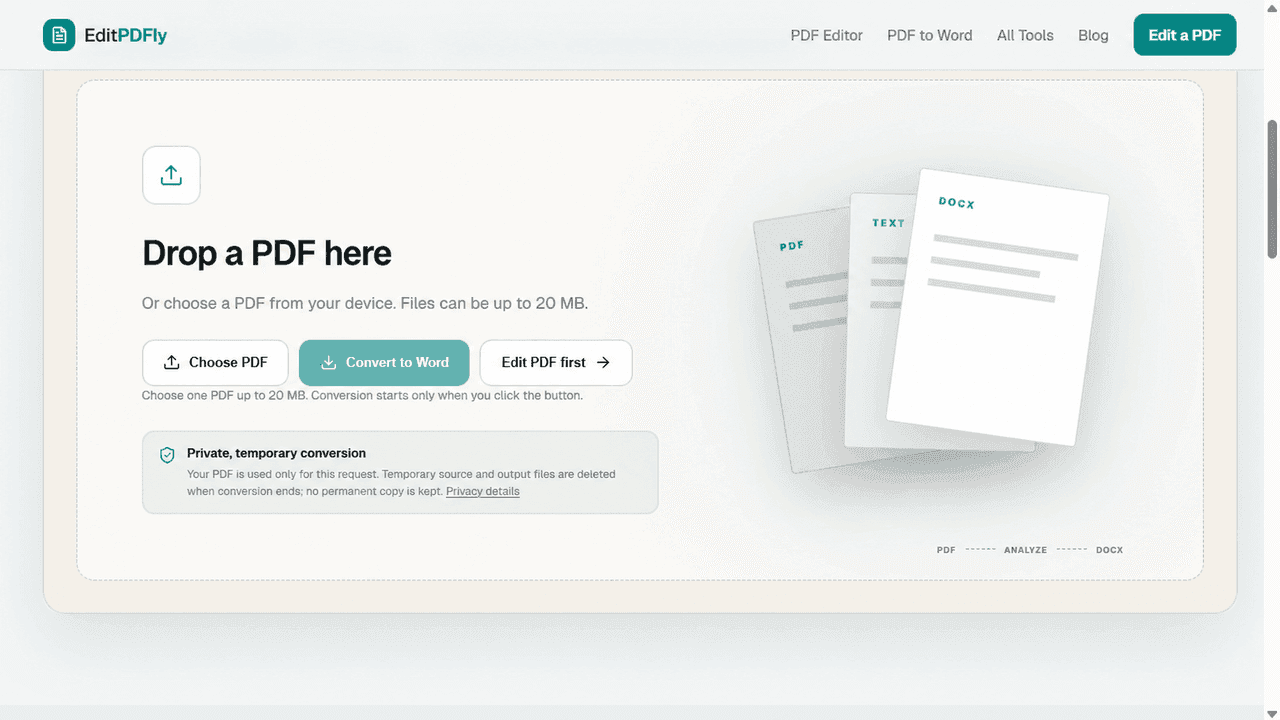
Open the EditPDFly PDF to Word Converter and choose the source file. Conversion does not start until you select the Convert to Word button.
EditPDFly converts the source PDF to DOCX. PDF editor overlays are not included in the Word file.
Convert a PDFConvert and download the DOCX
The converter analyzes text blocks, tables, images, and page geometry. It sends the source PDF in a multipart request using the field named pdf, writes the conversion into a temporary working directory, and removes that directory when the request ends.
When processing succeeds, the browser downloads a DOCX named from the source PDF. Keep the source PDF open so you can compare both files side by side.
- Choose one PDF between 1 byte and 20 MB.
- Select Convert to Word and wait for the download.
- Open the DOCX in Word or another compatible editor.
Inspect the document, not just the download
A downloaded file is not proof that the conversion is useful. Check that the DOCX opens, contains the expected pages, and includes real document content. In a technical check, a DOCX should also be a valid ZIP archive containing word/document.xml.
Compare headings, tables, images, page breaks, headers, footers, and any non-Latin text. Dense financial reports and files with many positioned elements need more review than a simple letter.
Read the font fidelity report
EditPDFly reads the X-Pdf-Font-Report response header and shows the detected font name, the Word export font, and whether a fallback was used. This makes a hidden source of spacing changes visible.
Even when the declared font name is preserved, the device opening the DOCX can substitute a font that is not installed. If the report shows a fallback, expect possible changes in line length, pagination, or table width.
What to do when formatting changes
Fix document-wide styles first, then page breaks and individual spacing. Replacing a missing font with an installed font before making small edits usually saves time.
If you only need to make a focused change while keeping the original page appearance, editing the PDF may be a better workflow than rebuilding the whole document in Word.
Frequently asked questions
Can I convert a PDF to Word without Acrobat?
Yes. Microsoft Word can open many text-based PDFs, and EditPDFly provides a dedicated PDF-to-Word converter. Both approaches create a new editable document, so compare it with the source before relying on the result.
Will the converted Word file keep the same formatting?
Not always. PDF uses fixed page geometry while Word reflows content. Tables, page breaks, columns, and unavailable fonts can move during conversion.
Can a scanned PDF become editable Word text?
Only after OCR recognizes the pixels as characters. EditPDFly does not currently provide OCR, so an image-only scan may remain an image in the DOCX.
Does converting a PDF change the original file?
No. Conversion creates a separate DOCX and leaves the source PDF unchanged. Keep the source available for comparison.
Official references checked
Product features change. These first-party guides were checked while preparing this article: